⚡ Quick answer: The WordPress admin panel (wp-admin) is the control center for a site: content, users, settings, plugins. For a business owner who’s just been handed a finished site, the most important thing at first isn’t “how everything works,” but four specific things: where to check the site’s overall state (Dashboard), who has access to the admin and with what permissions (Users), where backups actually live in case something goes wrong, and which actions are best avoided without a developer (updating WordPress core, deleting plugins, changing URL structures). Everything else gets learned gradually, as the real need arises.
Getting access to a freshly launched site’s admin and seeing a dozen menu items on the left is naturally a bit intimidating — especially if your prior experience with websites was limited to builders like Tilda or Wix, which offer fewer options but are also harder to get lost in. This article is an orientation for the first few weeks of working with your own WordPress site.
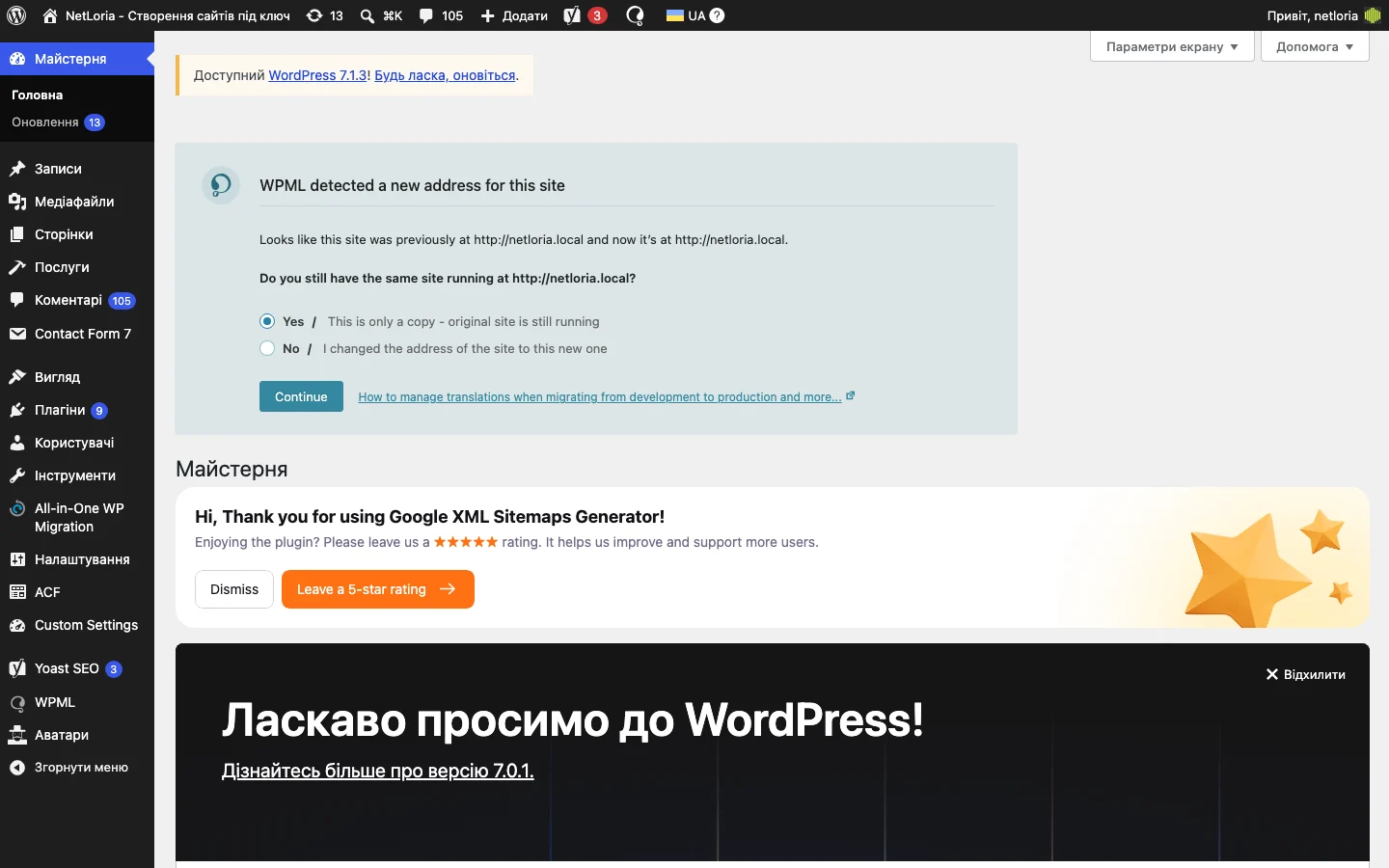
The first screen after logging in is a set of widgets: “At a Glance” (post count, page count, comment count), “Activity” (recent actions), sometimes WordPress news or notices from the theme and plugins. In practice, this screen rarely carries critical information for day-to-day work — what’s worth paying attention to here is update notifications (yellow or red banners at the top) and the number of comments awaiting moderation, if the site uses them.
If the site has ACF, Yoast SEO, WPML, or other major plugins installed, each one usually adds its own separate menu item — so the final list of items is always longer than this base set, and varies from site to site.
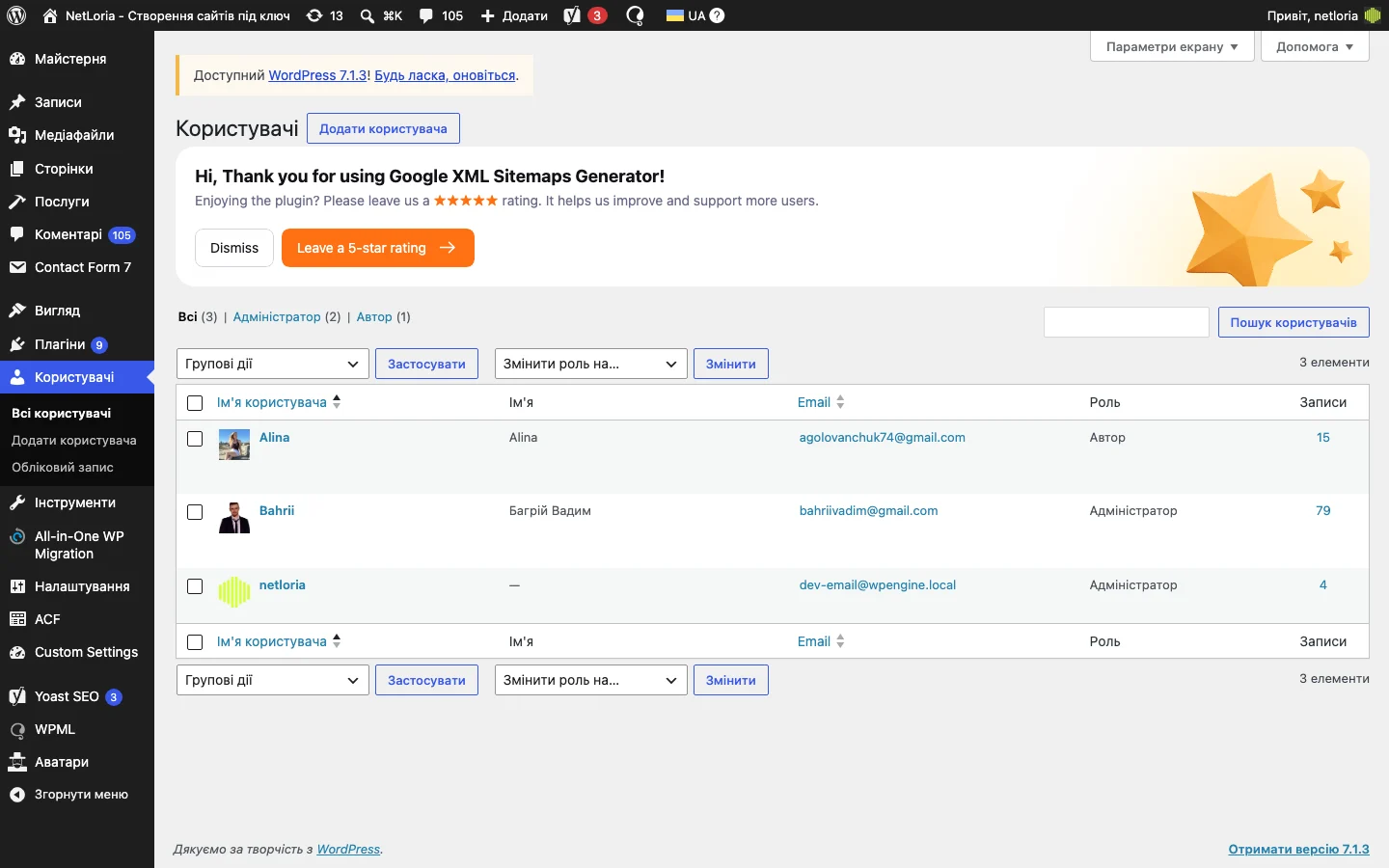
WordPress has several built-in user roles with different levels of access:
A practical tip: if a copywriter or marketer regularly writes content and doesn’t need access to plugins and site settings, give them an “Editor” or “Author” role instead of “Administrator” — this isn’t about distrust, it’s about reducing the risk of an accidental critical mistake (accidentally deleting an important plugin, say, by someone who just wanted to publish an article).
| Role | Content access | Settings/plugin access | Good fit for |
|---|---|---|---|
| Administrator | Full, all posts | Full | Owner, developer |
| Editor | Full, all posts | None | Team content manager |
| Author | Own posts only | None | In-house copywriter |
| Contributor | Writes, doesn’t publish directly | None | Freelance writer, intern |
| Subscriber | Own profile only | None | Registered site visitors |
The black bar at the top of the screen, visible both in the admin and on the site itself for logged-in users (the Admin Bar), often goes unnoticed by new site owners. It has a few handy shortcuts: the house icon goes to the site’s homepage, the “plus” lets you create a new post or page immediately regardless of which admin screen you’re currently on, and the username icon gives quick access to editing your profile and logging out. If you’re viewing the site as a visitor (not in the admin itself, just a regular page), that same top bar lets you jump straight into editing exactly the page you’re currently viewing with one click — faster than hunting for it in the general list.
This is a question worth settling in the very first week of working with a site, not at the moment something’s already broken. Backups can be stored a few different ways: through a dedicated backup plugin (exporting to Google Drive, Dropbox, or a separate server), automatically at the hosting-provider level (many hosts run daily backups on their own), or not stored at all, if nobody specifically set it up. It’s worth directly asking the developer or hosting provider: “Where exactly, and how often, are backups of this site stored, and specifically how do we restore them if something goes wrong?” — and getting a concrete, not a vague, answer.
On the “Updates” screen (wp-admin/update-core.php), separately from plugins, an available WordPress core update is shown. Updating the core is usually a safe action for minor versions (e.g., 6.9.4 → 6.9.5, mostly security fixes), but major version jumps (e.g., 6.x → 7.0) sometimes change editor behavior or compatibility with older themes and plugins. For sites without active technical support, a sensible approach is: don’t disable automatic security updates (WordPress quietly installs these by default), but coordinate major version upgrades with a developer in advance, with a fresh backup on hand.
A rough practical split: anything related to content (text, images, publishing posts, filling in already-built ACF fields, basic SEO settings for a specific article) is entirely manageable by the site owner after a short introduction to the interface. Anything related to site structure (new page types, design changes, installing new plugins, working with code, hosting, or the domain) is worth coordinating with a developer, even if there’s technically admin access to do it yourself.
If getting familiar with the admin makes it clear that ongoing site maintenance (updates, backups, monitoring, reacting promptly to error warnings) takes more time and attention than you’d want to spend yourself, that’s a separate service, not something you have to do by hand — we wrote about how much ongoing technical support for a site costs.
Yes — the “Editor” or “Author” role gives the content access needed for the work without rights to plugins, themes, or critical settings. Once the work is done, the account can be deactivated or deleted.
The login screen has a “Lost your password?” link — it sends a reset link to the email tied to the account. If you’ve also lost access to that email, password recovery is possible through a direct change in the site’s database — that’s a job for a developer or hosting provider.
No — always log out on shared or public devices. A session left open gives anyone who uses the same browser afterward full access to the site.
It depends on team size — for a small business, it’s often one or two people (the owner and whoever handles content). What matters more than the count is that each account’s role actually matches that person’s real responsibilities, rather than everyone getting Administrator “just in case.”
Periodically changing it is a sensible practice, especially if someone who no longer works on the site (a former employee, a freelancer after a project ends) might still have had access to it. A strong, unique password stored in a password manager matters more than the frequency of changes itself.
The base WordPress install doesn’t show this — it requires a separate Activity Log plugin, which records logins, content changes, and other user actions with timestamps. For sites where several people work in the admin, such a plugin is useful for understanding who made a specific change and when.
Yes — simply closing the tab leaves the session active on the server; someone else opening the same site in the same browser (on a shared computer, say) could land straight in the admin without entering a password. An explicit “Log Out” properly ends the session.