⚡ Quick answer: Content on a WordPress site is handled through two main material types — Posts (for blog articles and news) and Pages (for static content like “About Us” or “Contact”). The content editor lets you write and format text with a familiar toolbar (bold, italic, lists, links) with no coding knowledge required. Most beginner mistakes aren’t about the editor itself — they’re about forgetting to save a draft, mixing up publish status, or not checking how a piece looks on mobile before it goes live.
If you’ve just been handed a finished WordPress site, the first reaction is usually confusion: too many items in the sidebar menu, no clear sense of what’s safe to touch and what isn’t. This article is a practical orientation to what you’ll actually work with day to day: posts, pages, and the basic logic of the editor.
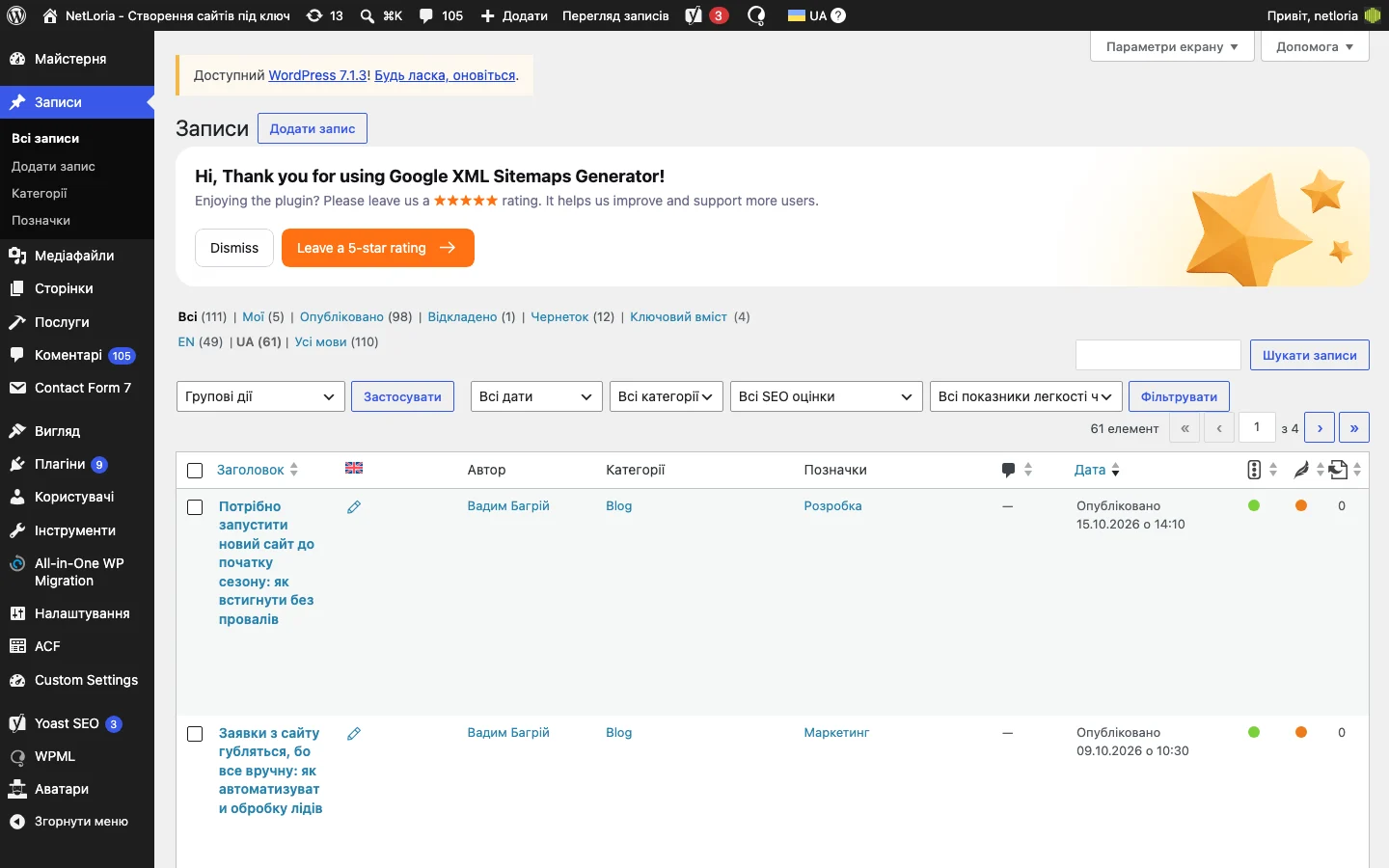
This is the first thing that confuses almost every site owner. The distinction isn’t a technical WordPress quirk — it’s logical:
A practical rule: if the question “when was this published” makes sense for the content, it’s a post. If the publish date doesn’t matter for the content’s meaning, it’s a page.
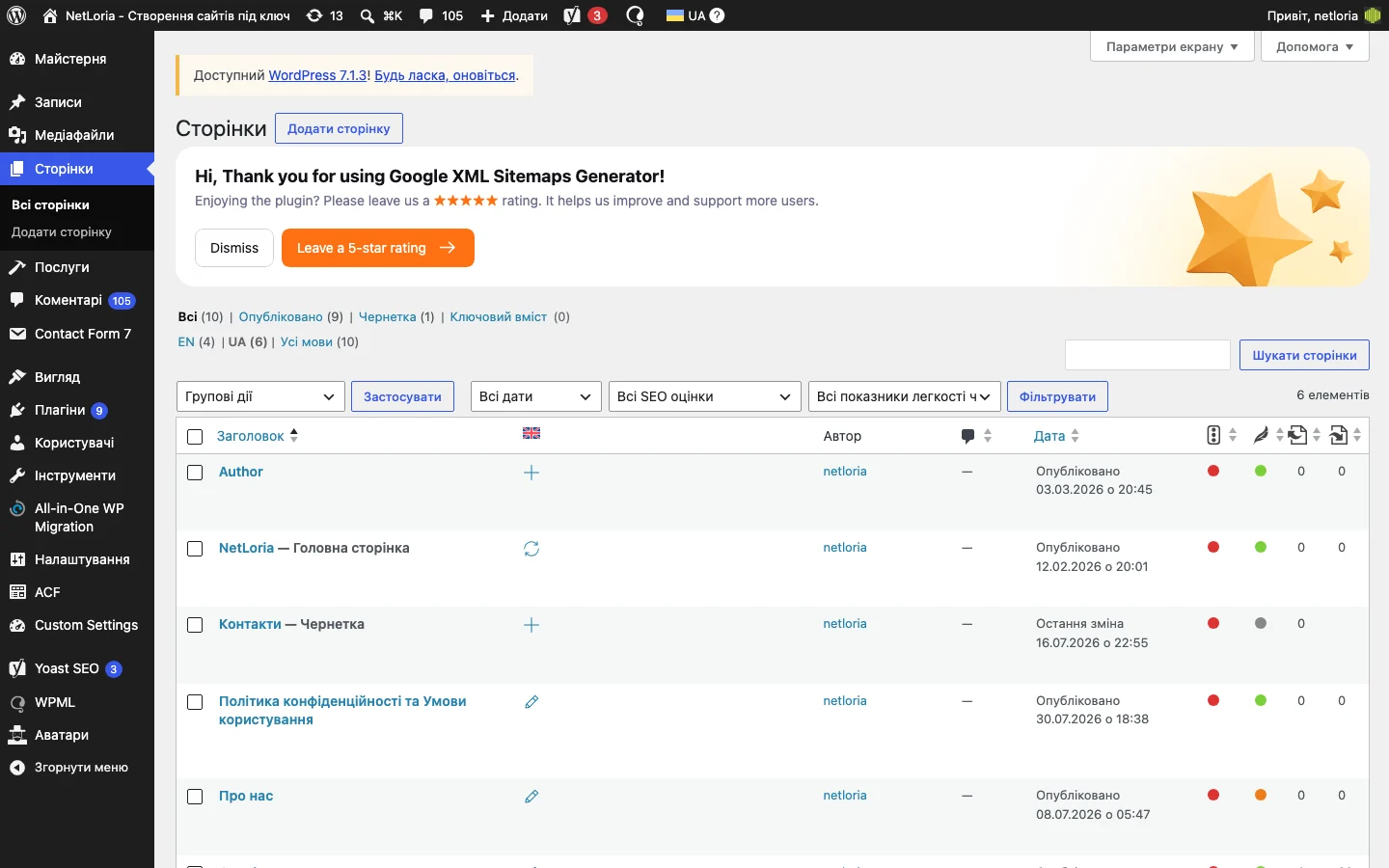
The “Posts” item in the admin sidebar opens a table of every published and draft article on the site — title, author, category, date. This is your main working screen if the site runs a blog.
The “Add Post” button opens an empty editor. The first field at the top is the title; below it is the content text area with a formatting toolbar above it.
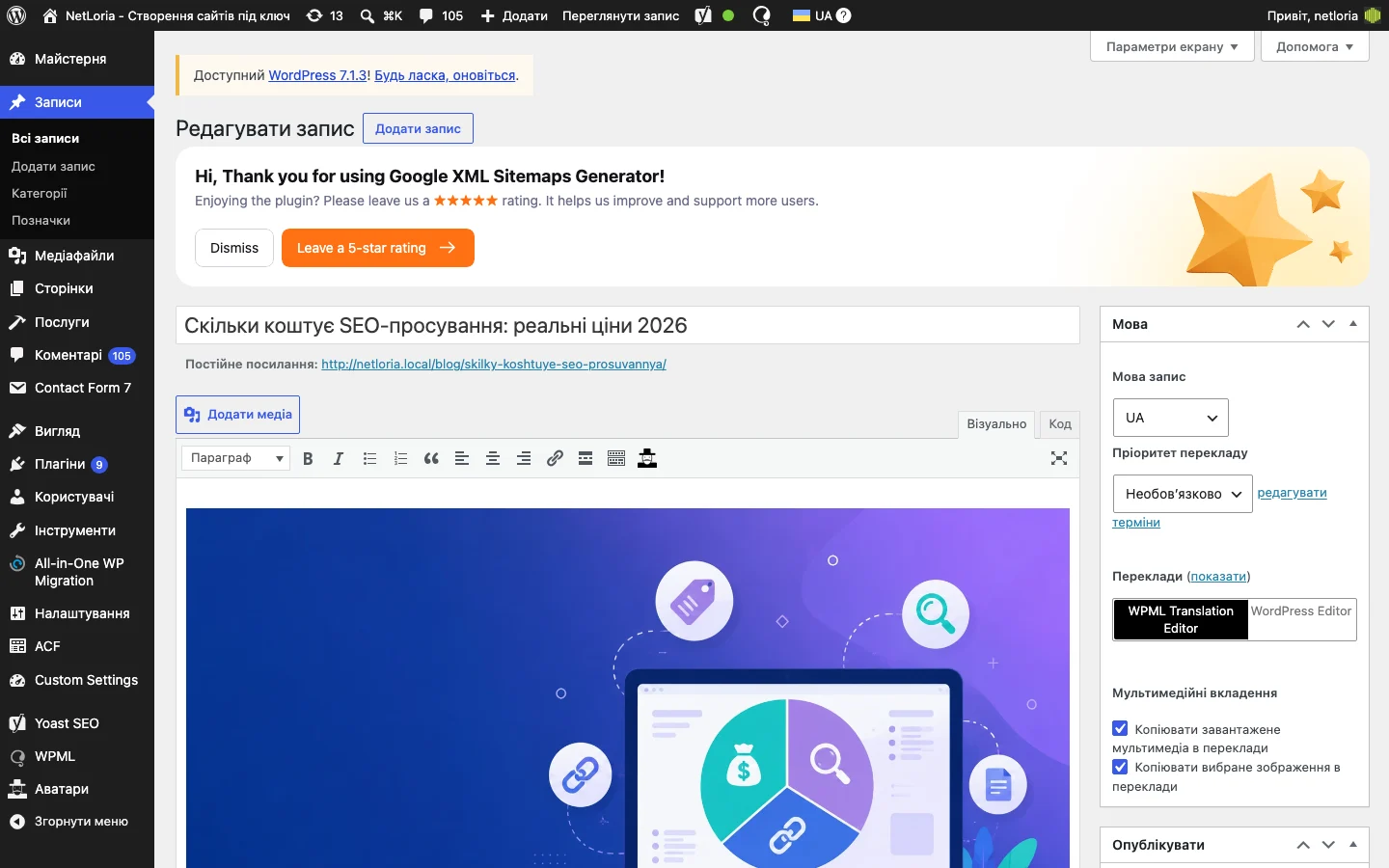
This site uses the Classic Editor — a more familiar format for anyone who’s worked with Word or Google Docs before, as opposed to the newer block-based Gutenberg editor that WordPress ships with by default in recent versions. The main area is a single text field with a formatting toolbar on top, much like a standard word processor:
Above the formatting toolbar sit two tabs: “Visual” — what you see is what you get (WYSIWYG), and “Text” — the same content as raw HTML markup, for anyone comfortable reading code and wanting to make a precise manual fix.
The “Add Media” button above the toolbar opens the media library to insert an image right where your cursor sits in the text.
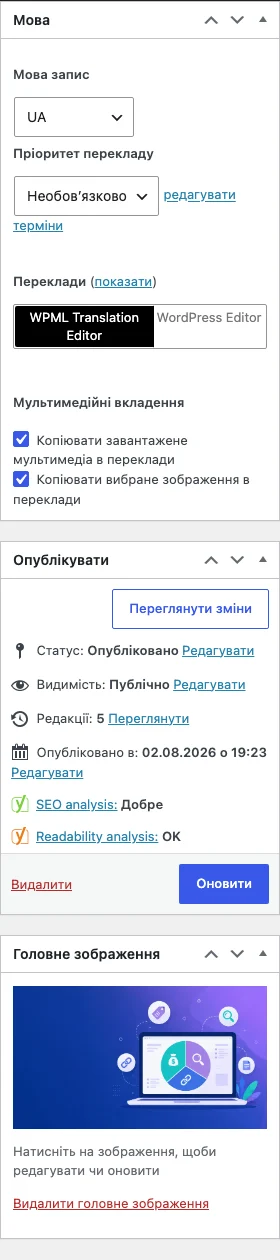
The right-hand sidebar of the editor has a “Publish” box with three important states:
There’s also an option to schedule publishing for a future date and time (the “Edit” link next to “Publish immediately”) — useful when content is prepared in advance but should go live at a specific moment, like the morning of an announcement.
Categories are broad topical sections of the blog (e.g., “Marketing,” “Development,” “SEO”); a post usually belongs to one or two. Tags are smaller, freeform labels (a specific technology or event, for instance) — there can be more of them, and they’re optional. Categories affect the site’s navigation structure (menus or filters are often built around them), while tags are more of a supporting way to connect similar content.
The editor’s sidebar has a separate “Featured Image” section — the image shown in the blog feed preview, in social media when the link is shared, and often as the top image of the article itself. A missing featured image is one of the most visible small oversights on a site: the blog feed ends up showing empty grey placeholders instead of cover images.
On sites with WPML installed, an extra “Language” box appears in the editor sidebar — a dropdown for the post’s current language and a “Translations” section showing the translation status of this material in the site’s other languages (a green checkmark means a translation exists, a “+” icon means it doesn’t yet). There’s also a switch for which editor to translate with: the built-in WPML Translation Editor (translate right inside the admin, field by field) or the regular WordPress editor (open the translation as a separate, independent post). For anyone handling content, this is usually one of the few places where you actually need to make a deliberate choice in the multilingual setup.
WordPress automatically saves a draft every few minutes of work, and also creates revisions (versions) of the material every time you click “Save Draft” or “Update.” The editor’s sidebar has a “Browse revisions” link — there you can compare previous versions of the text and roll back to any of them if an edit turns out to be a mistake. This removes the fear of “what if I break everything right now” — almost any text edit can be undone.
The “Preview” button in the sidebar opens the draft page in a new tab exactly as a visitor would see it — before it’s actually published. The Classic Editor doesn’t have a built-in mobile-screen simulation inside the admin itself (unlike the newer Gutenberg editor), so the most reliable way to check responsiveness is to open that same preview link on an actual phone, or narrow the browser window on a computer.
Once a site has dozens or hundreds of posts, scrolling through the “Posts” table becomes impractical. The top of the screen has a category filter, a date filter (a dropdown list of months), and a plain search box for title or text. Clicking a column header (e.g., “Date”) sorts the list by that field.
Below the title field in the editor is a line showing the page’s link — the “Permalink,” the part of the address where the material will live in the browser. WordPress generates it automatically from the title, but it can be edited separately by clicking “Edit” next to it.
An important rule: don’t change the URL of a material that’s already published and indexed by Google without a real reason. If the address changes, the old link starts returning a 404 error to anyone who clicks through from search or social media, until a redirect is set up from the old address to the new one. For a new, not-yet-published post, changing the URL freely is fine.
In the “Posts” table, hovering over a row reveals a few links under the title: “Edit,” “Quick Edit,” “Trash,” “View.” “Quick Edit” opens a compact form right inside the table — you can change the title, status, categories, or date without opening the full content editor. Handy for bulk minor changes when you don’t need to touch the text itself.
Above the posts table are status filters: “All,” “Published,” “Draft,” “Trash.” A deleted post doesn’t disappear forever right away — it goes to “Trash” and stays there (usually 30 days by default) before being permanently deleted. To restore it, open the “Trash” filter, hover over the post, and click “Restore.” This removes the fear of accidental deletion — there’s almost always time to change your mind.
If the Classic Editor feels unfamiliar after working with simpler website builders, it’s also worth reading our piece on how a WordPress site is actually built, for beginners — it covers more context about the platform itself, not just day-to-day content work.
Yes — edits to a published post become visible on the site immediately after clicking “Update,” but the editing process itself (before you click that button) is invisible to everyone but you. If you need to make large changes without it being noticeable, you can copy the content into a draft, edit it there, and transfer it back.
A deleted post first goes to “Trash” (visible in the filters above the posts table) and stays there for a while before being permanently removed. Restoring from Trash takes one click.
Technically, WordPress automatically assigns the “Uncategorized” category if none is chosen. But for site navigation and your own orientation in the content, it’s worth always picking a meaningful category manually.
This happens if you opened the same post in two browser tabs at once, or if the connection dropped mid-edit. The editor offers to compare the versions and choose which to keep — look carefully at both before deciding, so you don’t lose recent edits.
Yes, through the revisions section in the editor’s sidebar — it keeps a history of saves, and you can view and restore any earlier version.
For basic tasks (text, images, headings), a few hours of practice is usually enough, especially if you already have experience with regular text editors like Word or Google Docs — the formatting toolbar works in a very similar way.
If getting familiar with the admin panel makes it clear that regularly filling the site with content takes more time than you’d like, and your content strategy needs a systematic approach, that’s a separate task — we covered it in our piece on ongoing blog management.