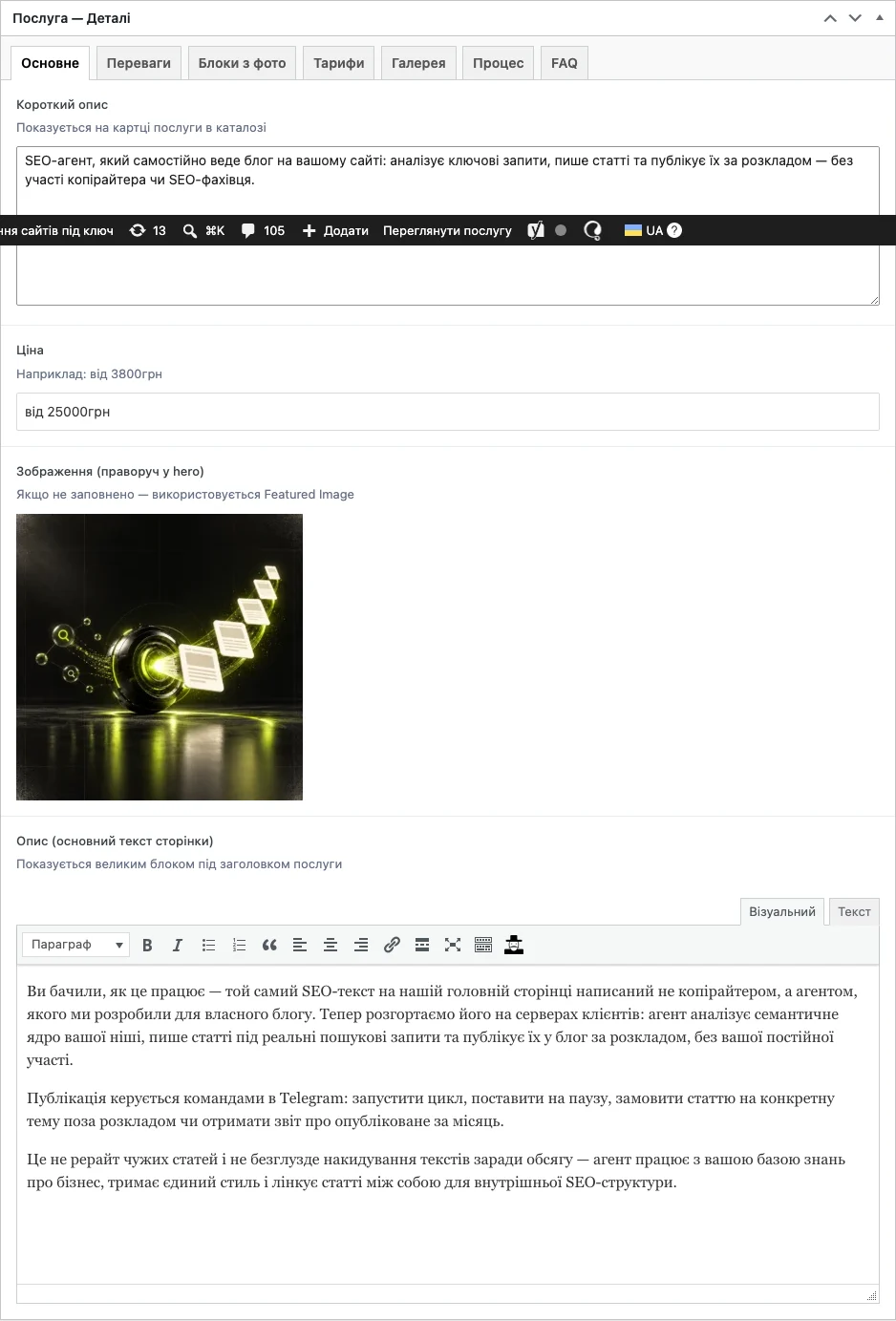
⚡ Quick answer: ACF (Advanced Custom Fields) is a plugin that adds custom, non-standard fields to WordPress posts and pages: a service’s price, a short description for a card, a list of benefits, a gallery for a case study — anything that doesn’t fit into the default text editor. If you open a service or product on your site for editing and see additional structured fields below the main editor (rather than just an empty content box) — that’s almost certainly ACF at work. A developer sets the fields up once to match the site’s structure; the owner’s job is just to fill in the already-built fields with values.
If you open, say, a service or product for editing and see a block under the main editor with labeled fields like “Price,” “Short Description,” “Image Gallery” — that’s not a standard WordPress feature, but an extension added specifically for this site’s structure. In the vast majority of cases, that’s the ACF plugin behind it.
The regular content editor is great for free-form text — a blog article, an “About Us” description. But for content with a clear, repeating structure (a service card always has a name, a price, and a short description; a product card always has a SKU, size, color), a free-text editor is awkward and risky: there’s no guarantee the editor won’t forget the price, or accidentally break the card’s formatting.
ACF solves this by pulling each such structural element out into its own, labeled field. A developer defines once: “this post type has a Price field (number), a Short Description field (text), a Gallery field (images)” — and from then on, every new post of that type automatically shows these same fields to fill in, in the same order, with no chance of accidentally skipping or breaking the structure.
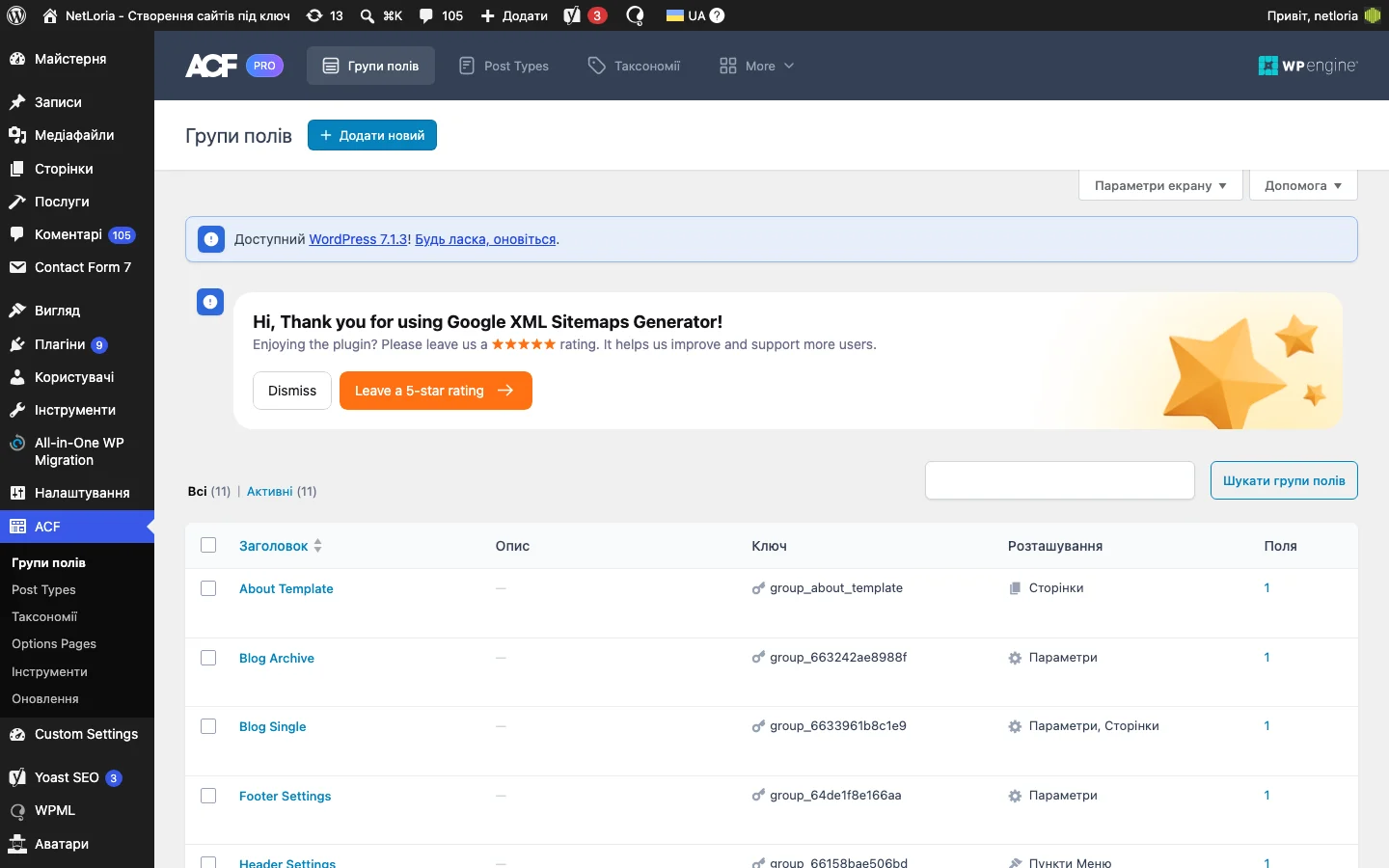
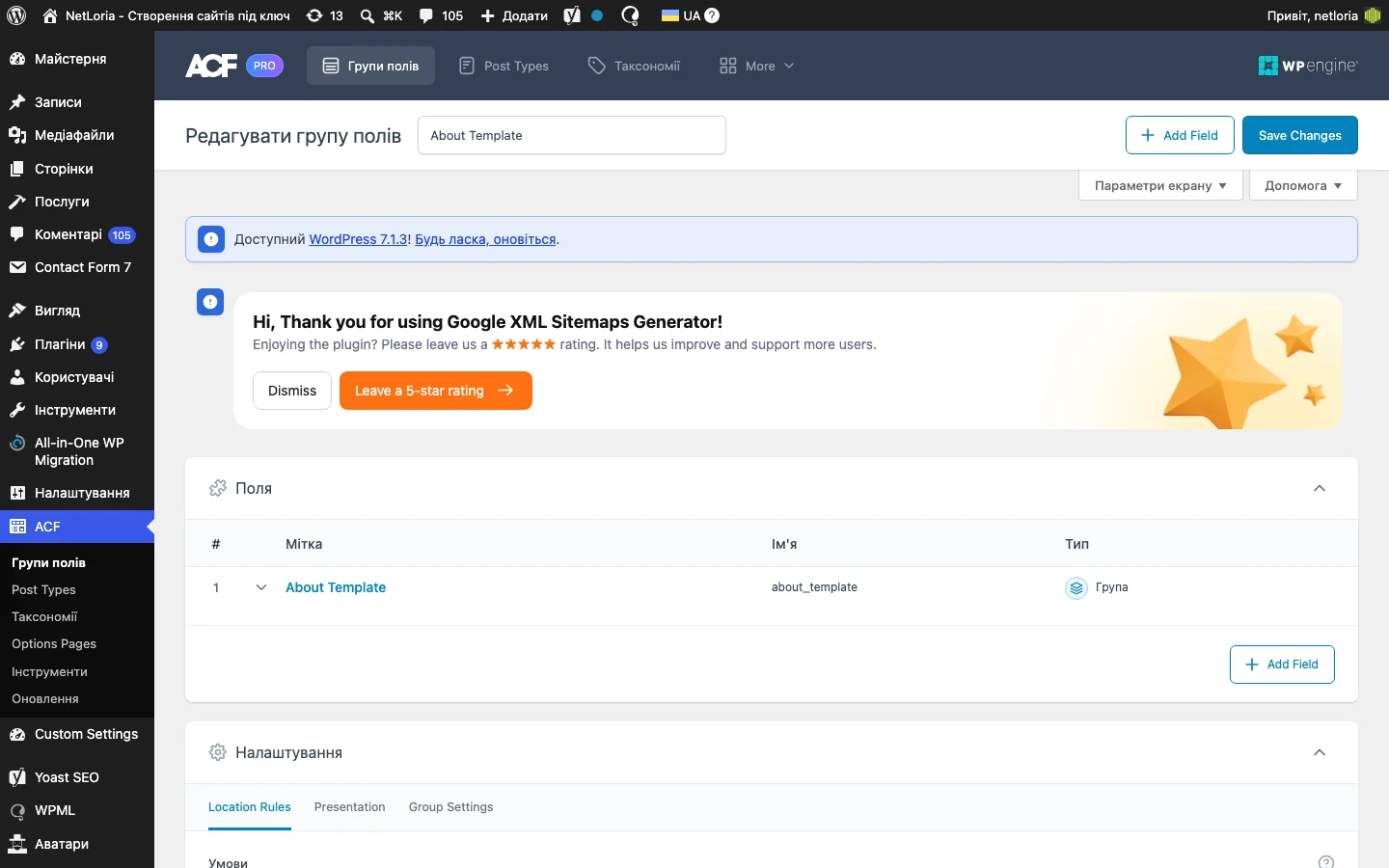
ACF custom fields usually appear right below the main content editor on a post or page, shown as a separate box with the field group’s name (e.g., “Service Details”). If ACF Pro is installed, the admin sidebar also has a dedicated item (usually labeled simply “ACF,” or “Custom Fields” / “Field Groups” depending on the version and settings) — that’s where a developer manages which fields appear and where. As the site owner, you typically don’t need to go there: that’s structural configuration, not content entry.
The repeater deserves special attention, since it’s the type that confuses new content editors most often. Visually, it looks like a list of rows with “Add Row” buttons and an X to delete a row. Each row is an independent set of sub-fields. A typical use case is the FAQ block on a service page: one repeater row = one question-and-answer pair, and you can add as many rows as needed without a developer’s involvement.
The main rule for working with a repeater: the order of rows on the page matches the order of rows in the editing list — dragging a row by the handle on the left reorders how it displays on the site.
The temptation to bypass structured fields and just type the price or specs straight into the main text editor is always there — it feels faster. But it breaks the page template’s work: if the site’s theme is coded to show the price as a separate, styled block in a specific spot on the card (pulling the value from the ACF “Price” field), and the price was instead typed as plain text in the free content, the page ends up with two places showing price info — one empty styled block (because the ACF field is blank), the other awkwardly dropped into the text somewhere the design never intended.
| Content type | Typical ACF fields | Why a regular editor wouldn’t be enough |
|---|---|---|
| Service card | Price, short description, icon, FAQ repeater | Needs the exact same styled look for every service card |
| Case study/portfolio | Client, year, gallery, link to the result | Gallery and metadata render in separate visual blocks of the template |
| Team/staff | Role, photo, social links, short bio | Identical card structure for every team member on the “Team” page |
| Homepage hero | Headline, subheadline, background image, button | The hero block is a unique design element, not part of ordinary page text |
ACF Pro allows setting up Conditional Logic — a field appears on the editing screen only if another field holds a specific value. For example, a “Video Link” field appears only when the “Media Type” field is set to “Video,” not “Image.” This isn’t something a site owner configures day to day, but it’s useful to understand why some fields sometimes “disappear” or “appear” depending on what’s selected above them.
Beyond fields on individual posts, ACF Pro lets you create a separate “Options Page” — a set of fields related to the site as a whole, rather than one specific post: a phone number in the header, social media links in the footer, discount banner text. Such fields usually appear in the admin sidebar as a separate item (e.g., “Site Settings” or “Theme: General Settings”) — and changing the value there immediately reflects everywhere on the site that field is used in the template.
Structured fields like ACF are exactly what lets service pages keep a consistent look regardless of who filled in the content. We wrote separately about what goes into building a corporate website — the ACF field structure is usually laid out exactly at that design stage.
Technically yes, if you have access to the “Custom Fields” section in the admin and understand how the field will connect to the display template. But a new field by itself shows nothing on the site until the page template is “taught” to output it — that already requires a code change from a developer. Adding new fields without that step only makes sense for internal use (notes not meant to be shown to visitors).
The field structure itself is deleted, but values already entered in posts physically remain in the database for a while — however, without the field definitions, the admin won’t show a form to edit them, and the site’s template may stop correctly outputting that data. This is an action best left to a developer, especially on a site with real, already-filled content.
The free version covers basic field types (text, number, image, choice). The Pro version adds repeaters, galleries, Flexible Content, and options pages — exactly the capabilities needed for more complex structures like FAQ blocks or site-wide settings.
Yes, ACF lets you export field group definitions to a file (PHP code or JSON) and import them on another site — a standard practice when moving a structure between a dev version of a site and the live production server, or when building a new site on a previously proven structure.
Each ACF field group has its own “Location Rules” — conditions for when it appears: “show only on posts of type Service,” for instance, or “only on the Homepage.” This is deliberate, done by the developer, so service fields don’t get mixed up with fields meant for ordinary blog posts.
By default, WordPress’s standard search only looks at the title and main content of a post, not ACF field values. If search needs to account for, say, a “Short Description” field’s content, that’s a separate setup a developer handles — it isn’t enabled automatically when ACF is installed.
If a specific value genuinely doesn’t apply to this post (no photo for one of the gallery items, say), it’s worth checking with the developer whether the “required” mark can be removed from that field — it may have been set that way by mistake during the structure setup, not intentionally.