⚡ Quick answer: Plugins are extensions that add new capabilities to WordPress without changing the site’s core code: contact forms, multi-language translation, caching for speed, spam protection. A typical business site usually has somewhere between 5 and 15 plugins installed, each handling its own specific job. The main rule for working with plugins safely: only install what’s genuinely needed, update regularly, and avoid duplicating functionality (two caching plugins, or two form plugins, running at once more often causes harm than good).
The “Plugins” section in the admin sidebar is one to visit rarely and carefully: unlike writing an article, a mistake here (deleting the wrong plugin, installing a conflicting extension) can visibly break the site for every visitor at once.
WordPress “out of the box” doesn’t do much: publish posts and pages, manage users, basic theme styling. Everything else — forms, SEO tools, effect-driven galleries, payment integrations — gets added through separate installable modules, plugins. This keeps each site from being bloated with unnecessary code: only the functionality a given project actually needs gets installed.
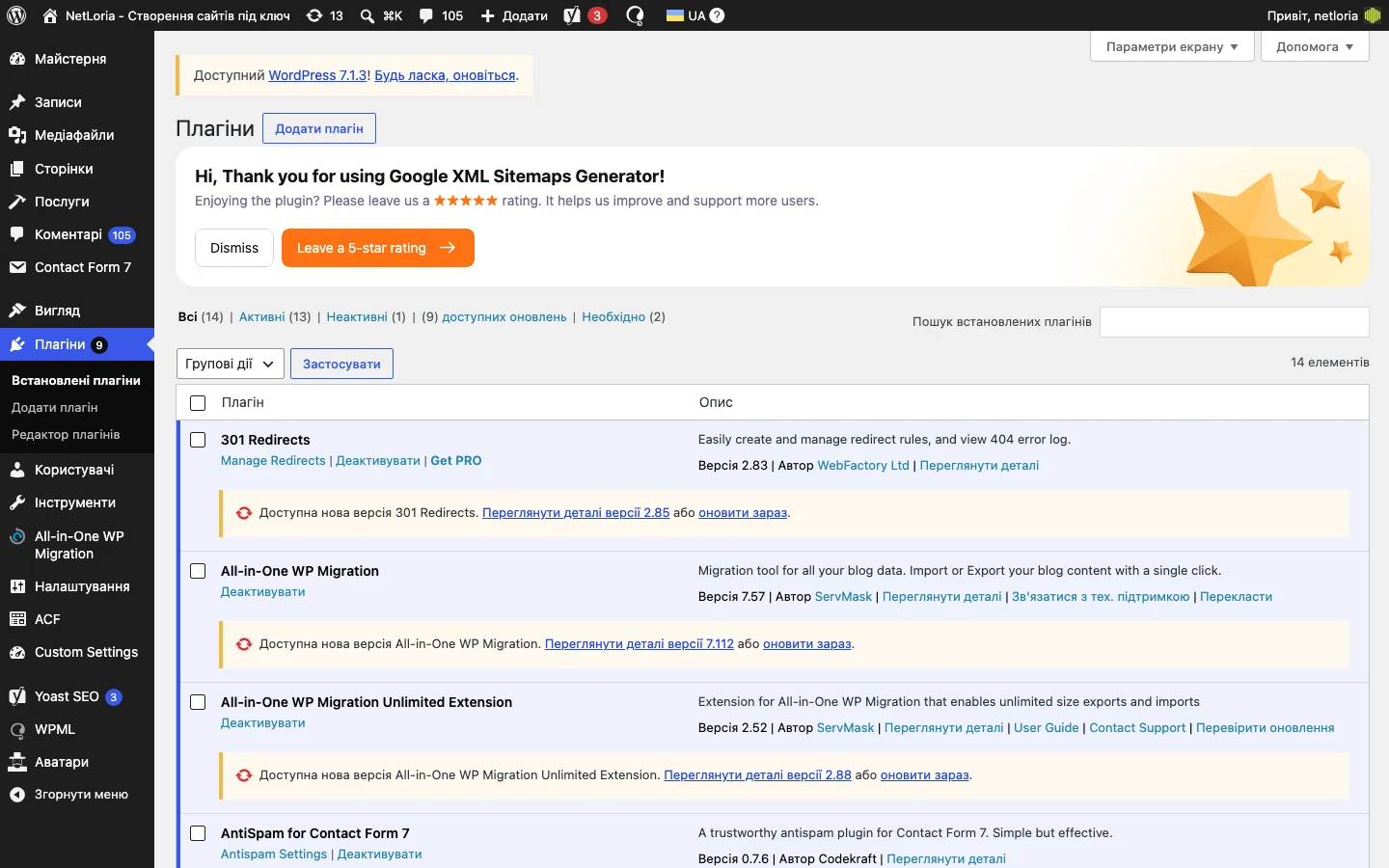
In the plugins table, each row shows the name, a short description, version, author, and “Activate”/”Deactivate” and “Delete” links. An active plugin is running on the site right now; an inactive one is installed but switched off (the code sits on the server but doesn’t execute, and has zero effect on the site until someone deliberately activates it again).
As a real example, this very site currently has active: ACF Pro, Yoast SEO, WPML (Sitepress Multilingual CMS), Contact Form 7 together with a spam-protection add-on for forms, All-in-One WP Migration for backups and site transfers, Classic Editor (the classic editor instead of the block-based Gutenberg), and a dedicated plugin for correctly transliterating Cyrillic URLs (Cyr2Lat) — the exact mix is always specific to a project’s needs, and doesn’t necessarily cover every category listed above.
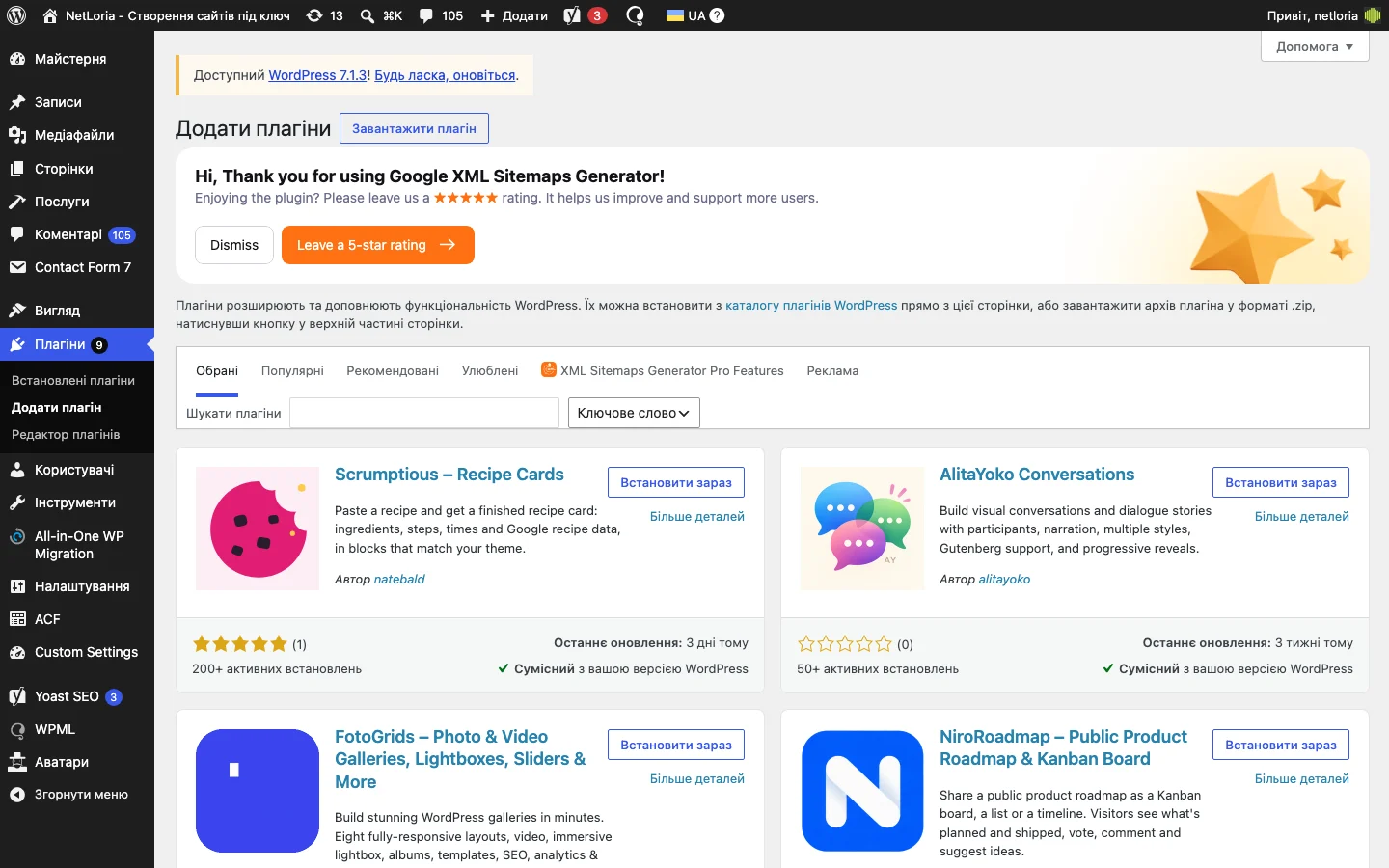
The “Add New” section under the “Plugins” menu opens a search right inside the official WordPress.org directory — millions of vetted extensions. Before installing a new plugin, it’s worth checking three indicators visible right in the search result card:
Every active plugin is extra code that runs on every page load, an extra potential vector for security vulnerabilities, and an extra point where a conflict with the theme or another plugin can arise. A typical practical ceiling for most business sites is roughly 10-20 active plugins; a significantly higher count usually means accumulated “just in case” extensions, some of which are no longer actually used.
Before installing a new plugin, it’s worth asking: doesn’t an already-installed plugin, or the theme itself, already handle this exact task? Duplicating functionality (two different SEO plugins running at once, say) doesn’t strengthen the result — it more often creates conflicts, with both trying to control the same meta tags.
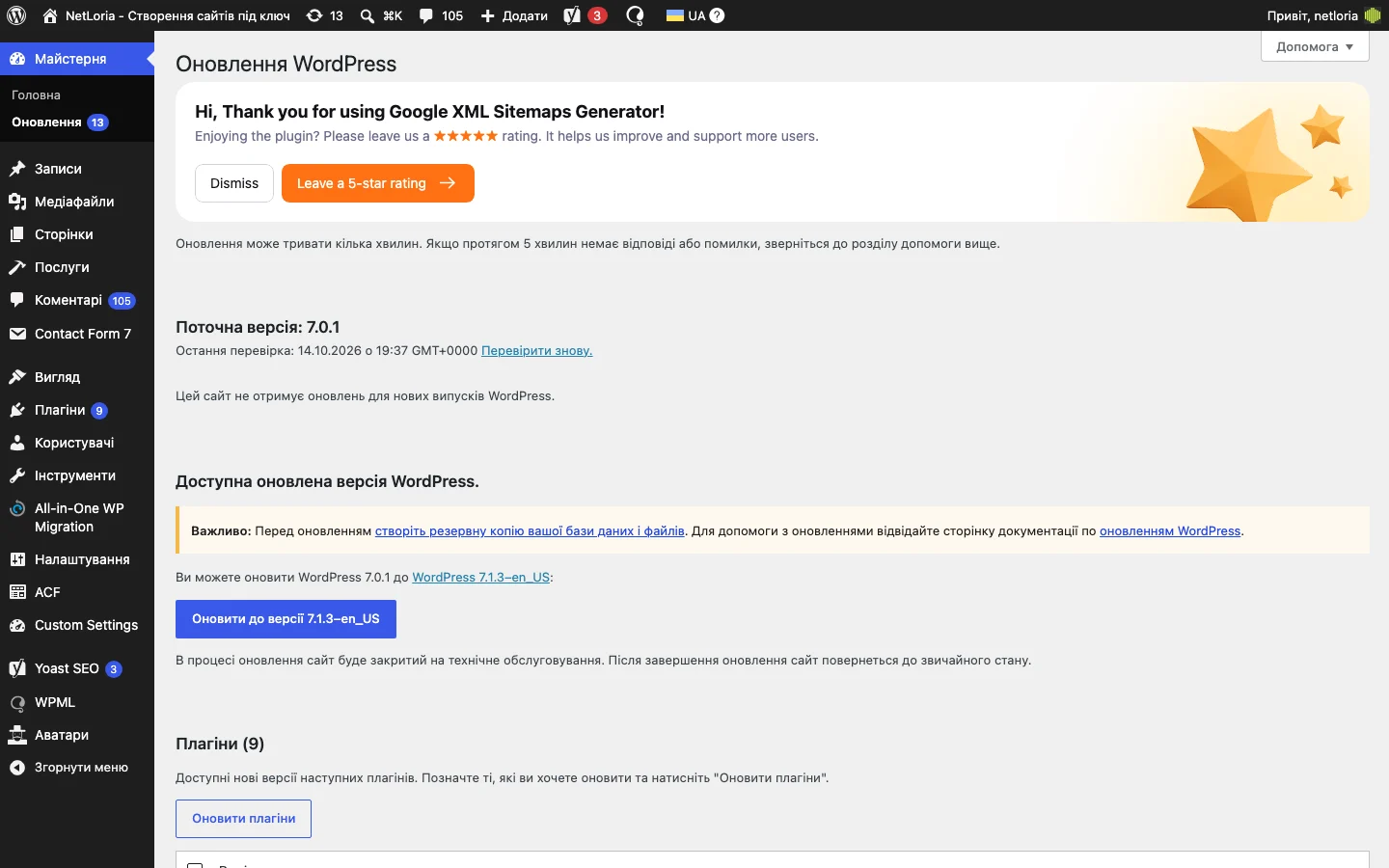
In the “Plugins” section, a notice appears next to every outdated extension showing an available update. Putting off updates “just in case, so nothing breaks” is a common but risky habit: most plugin updates are released specifically to close discovered security vulnerabilities. An outdated, un-updated plugin is one of the most frequent causes of WordPress sites getting hacked at all.
A sensible compromise for sites without dedicated technical support: update plugins regularly (weekly or every couple of weeks, say), after first making sure there’s a fresh backup in case a specific update causes a conflict with the theme.
| Category | Job | Examples |
|---|---|---|
| SEO | Search-engine configuration | Yoast SEO, Rank Math |
| Forms | Collecting inquiries and submissions | Contact Form 7, WPForms |
| Custom fields | Structured content beyond plain text | ACF, Toolset |
| Caching/speed | Speeding up page loads | WP Rocket, W3 Total Cache |
| Security | Protection from hacking and brute-force attempts | Wordfence, Sucuri |
| Multilingual | Translation and language switching | WPML, Polylang |
| E-commerce | Online store, cart, payment | WooCommerce |
| Backups | Automatic backup saving | UpdraftPlus, Duplicator |
One of the scarier scenarios for a site owner — after activating a new plugin or an update, the site (sometimes the admin itself) shows a blank white page instead of content. This usually means a code conflict between plugins, or incompatibility with the server’s current PHP version. If admin access still works, the fix is simple: deactivate the just-installed or just-updated plugin through the plugins list. If the admin itself is unreachable, a plugin can still be deactivated through the hosting’s file manager or FTP by renaming that specific plugin’s folder under `wp-content/plugins/` — WordPress automatically treats a renamed folder as an inactive plugin and stops loading it. This is one of the few situations worth contacting a developer or your hosting support about right away, rather than trying to fix it blind on your own.
This is another common source of confusion. A Theme defines the site’s overall visual look — layout, colors, typography, page structure. A plugin adds functionality independently of visual appearance — a contact form will work the same regardless of which theme is installed. You can change a site’s theme and every plugin keeps working (though visual integration might need extra configuration); but you can’t “replace a plugin with a theme” — these are fundamentally different kinds of extensions.
If a site is behaving strangely (an error on a page, a style conflict) and a plugin is suspected as the cause, the first step is deactivating plugins one at a time (not deleting) and checking whether the problem disappears. Deactivation turns off the code without erasing the plugin’s settings — reactivating restores everything as it was. Deletion, on the other hand, wipes the settings too, so a plugin should only be deleted once you’re sure you won’t be using it anymore.
Site security isn’t just about timely plugin updates — it’s a broader set of practices; we covered common hack scenarios and concrete recovery steps in more detail in our piece on what to do if your site gets hacked.
Technically yes, through “Upload Plugin” and selecting the ZIP file downloaded from the paid plugin developer’s official site (the WordPress.org directory only shows free ones). The difference is just how you obtain the file, and the license key needed for updates.
Content already entered into custom fields physically stays in the database, but the site will stop correctly displaying and editing it until the plugin is reactivated — some blocks of the page may look empty or broken. This doesn’t destroy the data permanently, but it visibly breaks the site for visitors while the plugin stays inactive.
The plugin’s name and description in the list usually give a hint. If it’s still unclear, a safer check is deactivating it for a few minutes (ideally during low traffic) and seeing which site function stops working, then reactivating it right away if that function turns out to be needed.
It’s safer to update them one at a time or in small groups, checking the site between updates — that makes it much easier to pinpoint which specific update caused a problem, if one occurs, instead of guessing among a dozen simultaneously updated plugins.
No — a security plugin is one layer of defense, not a full guarantee. Regular updates, strong passwords, limited admin access, and backups remain necessary regardless of whether a security plugin is installed.
There’s no universal number — what matters more than the count itself is whether each plugin is genuinely in active use. Roughly 10-20 active, well-maintained plugins is a normal situation for most sites; the real concern should come not from the number itself, but from discovering inactive or forgotten extensions nobody even remembers installing.
An inactive plugin doesn’t run code and isn’t a direct threat, but its files still sit on the server and are sometimes overlooked during WordPress core updates, which can create a vulnerability later. Without a concrete plan to use it in the coming months, it’s safer to delete it and reinstall later if needed — installing a new plugin from the directory takes a minute.