⚡ Quick answer: Every image, video, and document on a site is stored in one shared “Media Library” — regardless of which post or page it’s attached to. The main things worth keeping an eye on when uploading: file size (large photos directly slow down the site), alt text (a description of the image for accessibility and search engines), and which specific size version you actually insert into the content. In practice, most “slow site” complaints turn out to be a problem with heavy, unoptimized images specifically.
The Media Library is one of those admin sections people check less often than the post editor, but it’s exactly where problems quietly pile up that hurt a site’s speed and accessibility. Let’s go through how it’s organized and what to watch for.
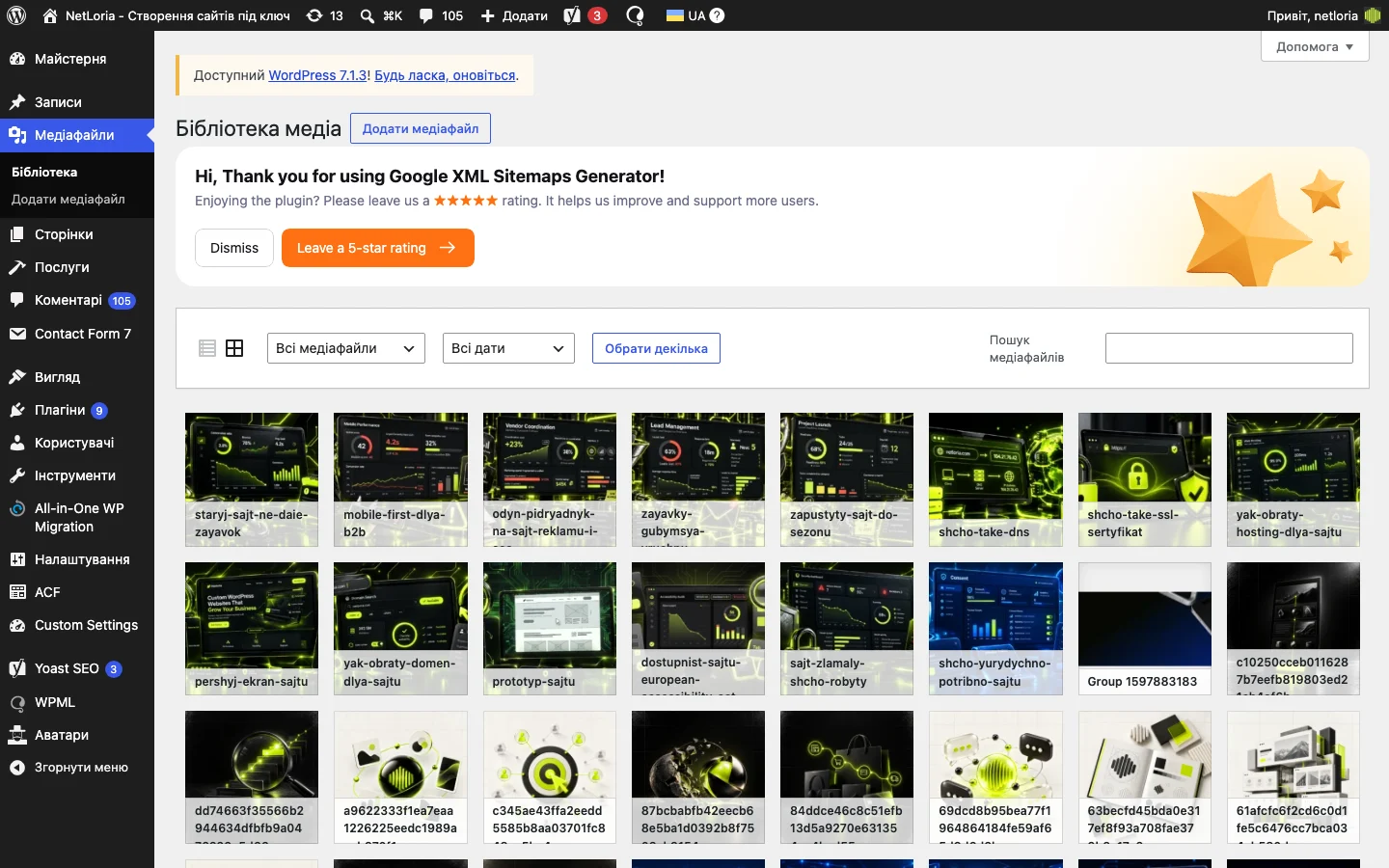
The “Media” menu item opens a grid (or list) of every image, PDF document, and sometimes video uploaded to the site — regardless of which post or page actually uses it. It’s a single shared store for the whole site: upload an image once, and you can reuse it across several different posts without uploading it again.
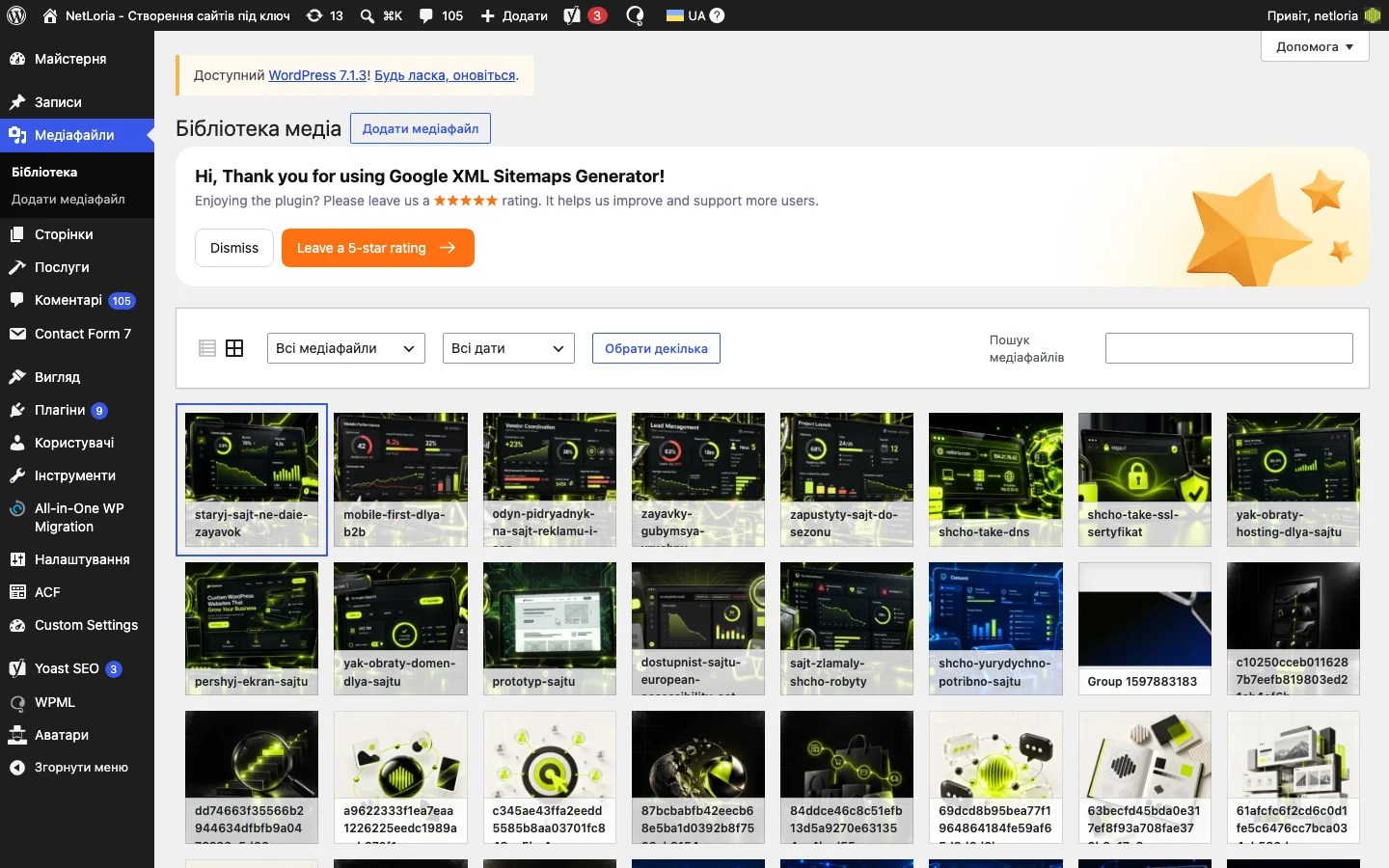
Clicking any image opens an “Attachment details” modal with several fields: file name, URL, and three text fields people often confuse:
Alt text really is invisible to the average site visitor — but it’s critically important in three situations: for people using screen readers due to a visual impairment, for search engines, which don’t “see” an image the way a person does and read the alt text to understand it, and for cases where an image fails to load for some reason — the browser shows the placeholder text instead of the picture.
Good alt text describes the image’s content specifically, not in vague terms: not “photo 1,” but “development team discussing a website layout in the office.” If an image is purely decorative (a background texture, a divider), it’s fine to leave the alt text empty — that’s actually the correct choice too; it explicitly tells assistive technology to skip the element.
When you upload a single image, WordPress automatically creates several copies of it at different sizes (e.g., thumbnail, medium, large, full size) — this is needed so a page listing articles loads a small version (fast), not the full-resolution original (slow). When inserting an image into content, the editor lets you choose a specific size — by default, aim for a size that roughly matches how the image will actually display on the page, rather than always picking “Full Size.”
A photo taken on a modern phone, or downloaded straight from a stock site, often weighs 3-8 megabytes — tens of times more than a web page actually needs. Before uploading, it’s worth compressing images with one of the free online tools (TinyPNG or Squoosh, for example) or converting to WebP, which at the same visual quality weighs noticeably less than JPEG or PNG.
A rough practical threshold: for an image taking up a significant share of the page width, 150-400 KB is usually enough for good quality; figures in the several-megabyte range almost always mean no compression was done at all.
| Format | When to use it | Typical file weight |
|---|---|---|
| JPEG | Photographs, complex images with gradients | Medium-high if uncompressed |
| PNG | Logos, graphics with a transparent background | High for photos, low for simple graphics |
| WebP | Universal replacement for JPEG/PNG on the web | 25-35% smaller than JPEG at equal quality |
| SVG | Icons, simple vector illustrations, logos | Very low, independent of display size |
In list view (the “List” toggle next to “Grid” at the top of the media library), you can tick checkboxes on several files and apply a bulk action — deleting a group of unused images at once, say, instead of opening and deleting each one individually. For large libraries (hundreds of files), filtering by file type (image, audio, document) and by date at the top speeds up finding what you need significantly.
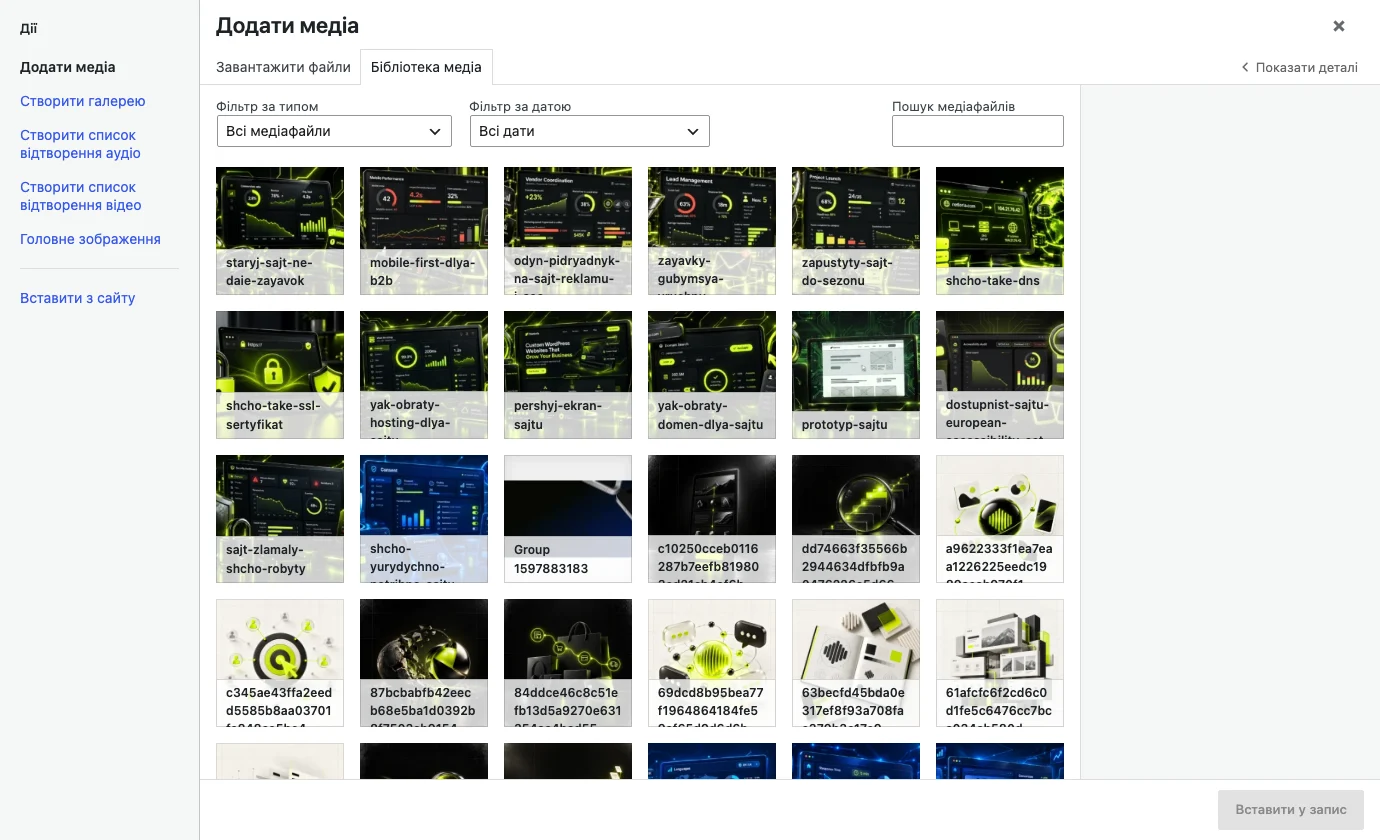
It’s worth distinguishing two different ways of using an image on a page: the “Featured Image” in the editor sidebar — one cover image for the whole piece, shown in previews and social media; and images inserted directly into the text via the “Image” or “Gallery” block — they appear exactly where inserted, within the body of the article itself. The same image from the media library can be used as both the Featured Image and inserted again in the text — this doesn’t create a duplicate file; both places point to the same single file in the library.
If you need to replace an image already used on the site (an updated logo, say), you don’t necessarily have to manually re-insert it into every post. Some plugins add a “Replace Image” feature right in the media library’s attachment details — the new version of the file is automatically substituted everywhere the old image was used, no manual hunting through every page required. If no such feature is available, the most reliable method is uploading the new image under the exact same filename via FTP or the hosting file manager, after first backing up the original.
Over time, the media library accumulates images uploaded “just in case” or left behind after the post that used them was deleted — they stay in the library, taking up hosting space, even though they no longer appear anywhere on the site. The WordPress media library itself doesn’t show which files are actually in use and which aren’t; separate plugins exist specifically to check for unused media files. Periodically cleaning up this kind of clutter is good practice for tidiness, though unused files don’t directly affect site speed (only the ones actually inserted into pages get loaded).
Image optimization is just one of several components of site speed; we covered the other technical factors in more detail in our piece on speeding up a WordPress site.
In some jurisdictions (within the European Union, for instance), digital accessibility requirements for websites — including alt text for images — are set in law, not just offered as a recommendation. For businesses serving a European audience, this is no longer a “nice to have” question but a compliance one. We covered exactly which requirements apply and to whom in our piece on website accessibility and the European Accessibility Act.
Technically yes, but for large video files this is poor practice — they place a significant load on hosting and slow down backups considerably. For video, it’s almost always better to use YouTube or Vimeo and embed a link or player instead.
The most common cause is inserting an image at a size larger than its actual resolution (a small photo stretched across the full page width, for instance). Either upload a higher-resolution version, or reduce the display block’s size on the page.
Yes, if they’re genuinely unused — it frees up hosting space. Before a mass deletion, it’s worth checking with an unused-media plugin to see exactly what isn’t attached to any post, so you don’t accidentally delete something still active.
Current versions of all major browsers support WebP without issue. As a safety net, some themes and plugins automatically show a JPEG/PNG fallback for very old browsers that still don’t support it.
Optimization plugins (automatic WebP conversion on upload, for example) take care of part of the work, but they don’t fully replace pre-upload compression — especially if the original file weighs several megabytes. Combining “compress before uploading” with “plugin optimization afterward” gives the best result.
The overall media library size is usually visible in the hosting control panel (the files or disk-usage section), not directly in the WordPress admin. Some media-optimization plugins also show summary statistics: how many files, total weight, how much was saved through compression.